
Documentation
Everything you need to know about using our products
Product EI Suite Guide
Version: 1.0.0 | Requires: WordPress 6.5+, WooCommerce 8.0+, PHP 7.4+
This guide covers the complete Product EI Suite for WooCommerce — the unified plugin combining full-featured product export and import in a single admin interface. It documents every screen, feature, and configuration option.
If you previously used standalone Product Exporter for WooCommerce or Product Importer for WooCommerce, your existing data (templates, profiles, history, sources) is fully compatible with EI Suite. No migration required.
Table of Contents
Plugin Installation
How to install Product EI Suite for WooCommerce
Method 1 — WordPress Plugin Manager (recommended)
- Log in to your WordPress admin panel.
- Go to Plugins → Add New.
- Click Upload Plugin and select the downloaded .zip file.
- Click Install Now, then Activate Plugin.
- After activation, a new "Product EI Suite" menu will appear under WooCommerce.
Method 2 — FTP/SFTP Manual Upload
- Unzip the downloaded archive.
- Upload the badamsoft-product-ei-suite folder to /wp-content/plugins/ on your server.
- Go to Plugins in your WordPress admin and click Activate.
Migration from standalone plugins
If you previously used Product Exporter for WooCommerce or Product Importer for WooCommerce, EI Suite will automatically detect and continue using the same database tables and option keys. All your templates, profiles, history, and sources remain fully intact — no migration wizard needed.
System Requirements
Minimum server and software requirements for Product EI Suite
| Component | Minimum | Recommended |
|---|---|---|
| WordPress | 6.5 | 6.7+ |
| WooCommerce | 8.0 | 9.x |
| PHP | 7.4 | 8.2+ |
| MySQL / MariaDB | 5.6 / 10.1 | 8.0+ / 10.6+ |
| PHP memory_limit | 128 MB | 256 MB |
| PHP max_execution_time | 60 sec | 300 sec |
| PHP max_input_vars | 1000 | 5000 |
License Activation
Activate your Product EI Suite PRO license to unlock all Pro features
How to Activate
- Purchase a license at badamsoft.com — you will receive a license key by email.
- Go to WooCommerce → Product EI Suite → License.
- Enter your license key in the License Key field and click Activate.
- The status indicator will turn green if activation succeeds.
License Statuses
Deactivating a License
To move your license to a different site, click Deactivate on the License page. This frees up one activation slot. You can then activate the key on your new site.
Each license has a fixed number of activations (Single Site = 1, 3 Sites = 3, Unlimited = unlimited). Staging/development sites on localhost are not counted against your activation limit.
Export Dashboard
WooCommerce → Product EI Suite → Export → Dashboard
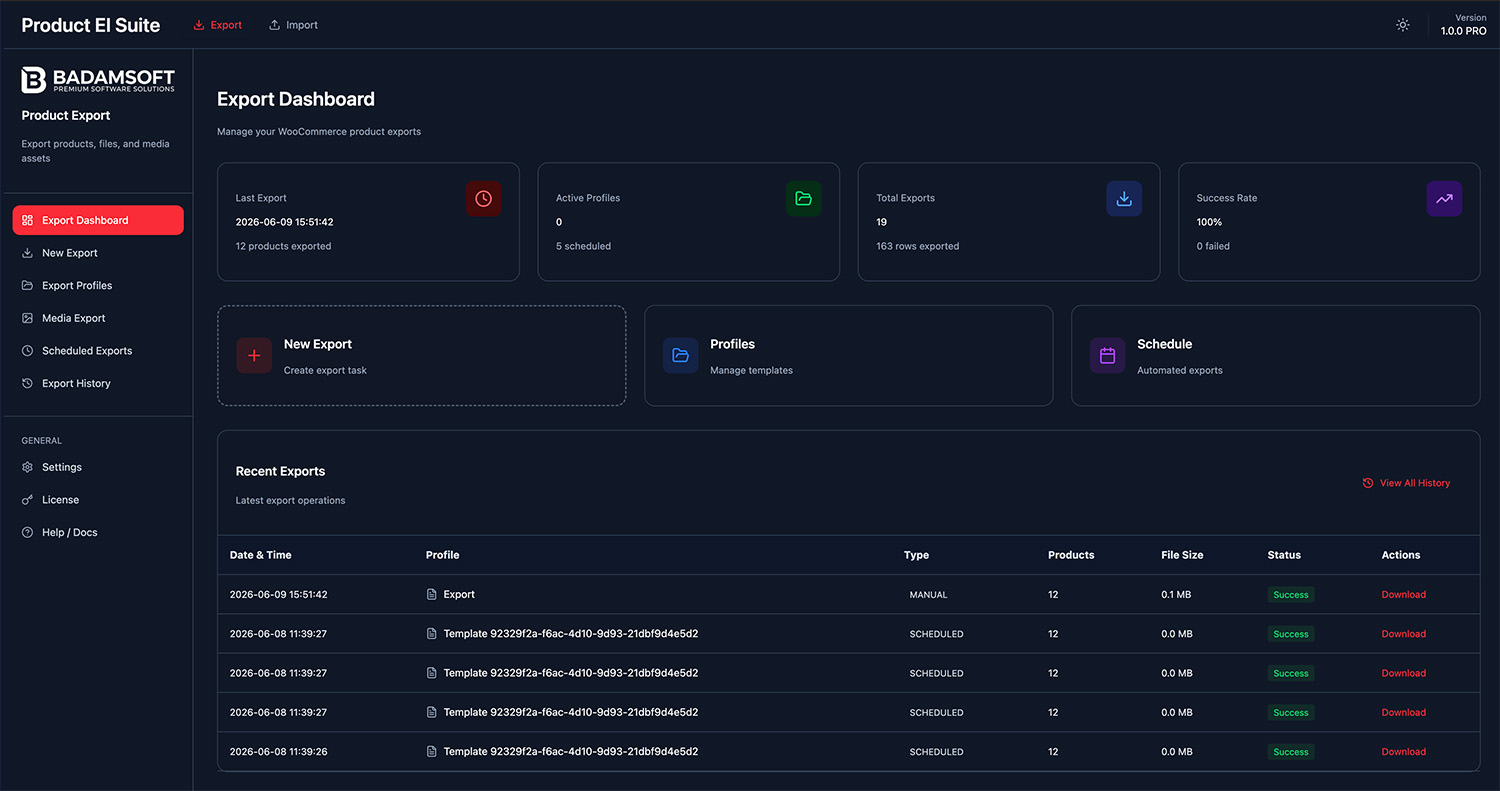
The Export Dashboard is the starting screen for all export operations. It shows key performance indicators and recent activity at a glance.
KPI Cards
Recent Exports Table
Below the KPI cards, a table shows the most recent export runs with columns: Date, Profile name, Type (EXPORT / SCHEDULED), Status (success / error / running), Product count, File size. Clicking a row opens the export details and allows downloading the file.
Quick Action Buttons
New Export
WooCommerce → Product EI Suite → Export → New Export
The New Export screen is a single-page wizard with collapsible sections. Configure fields, filters, format, file settings, and then preview or run the export.
1. Field Selection
A tree-structured list of all exportable WooCommerce fields grouped by category: general, pricing, inventory, shipping, taxonomies, images, attributes, variations, meta, and more.
- Search fields by name, select all / deselect all buttons
- Drag & drop to reorder columns in the output file
- Private (internal) fields shown with a visual marker
- Custom Meta fields supported
- Filter tree by field group
2. Export Filters
Narrow down which products are included in the export:
3. Export Formats
| Format | Extension | Notes |
|---|---|---|
| CSV | .csv | Configurable delimiter, encoding (UTF-8, Windows-1251, etc.) |
| TSV | .tsv | Tab-separated values |
| XLSX | .xlsx | Native Excel, full Cyrillic support |
| JSON | .json | Full product object structure |
| JSON Lines | .jsonl | One product per line, ideal for large datasets |
| XML | .xml | Configurable tags and attributes |
| XML (Google/YML) | .xml | Google Merchant Center feed & Яндекс.Маркет YML |
4. Preview & Run
Click Preview to fetch the first N rows from the backend and display a scrollable table of real data before committing to a full export. Shows the number of matching products. Click Run Export to start the full export — a live progress indicator tracks completion.
5. Save as Profile
After configuring fields, filters, and format, click Save as Profile to persist the entire configuration for future one-click re-runs. Profiles can be scheduled.
Export Profiles
WooCommerce → Product EI Suite → Export → Export Profiles
Export Profiles save a complete export configuration — field selection, filters, format, file name pattern, and destination — so you can re-run the same export with one click. Profiles are the foundation for scheduled exports.
Profile Actions
Scheduled Exports
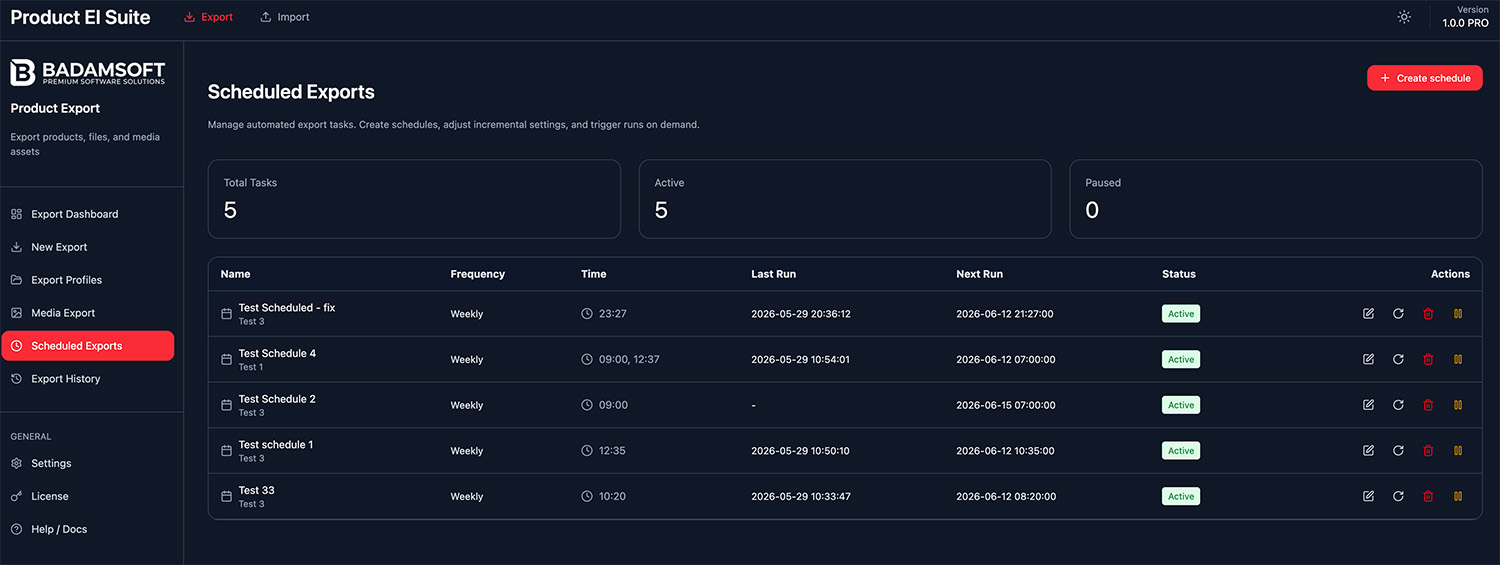
Attach a schedule to any profile to automate recurring exports. The scheduler supports standard intervals and custom cron expressions.
- Intervals: hourly, daily, weekly, monthly, custom cron expression
- Timezone-aware scheduling
- Post-actions: Email, FTP/SFTP, Amazon S3, Google Drive, Webhook
- Email notification on success and/or error
- Schedule can be paused without deleting the profile
Export History
WooCommerce → Product EI Suite → Export → History
The Export History table logs every export run. Each row shows: Date, Profile, Type (manual / scheduled), Status, Product count, File size, and a Download button.
Clicking a row expands the detail view showing which fields and filters were used, execution time, and any warnings or errors. Files are stored in the configured export directory and cleaned up based on the retention setting in Settings.
File retention: Configure how many days export files are kept in Settings → Export → General → Auto cleanup. Files older than the retention period are deleted automatically.
Import Dashboard
WooCommerce → Product EI Suite → Import → Dashboard
The Import Dashboard is the entry point for all import operations. It provides at-a-glance statistics and shortcuts to the most common import tasks.
KPI Cards
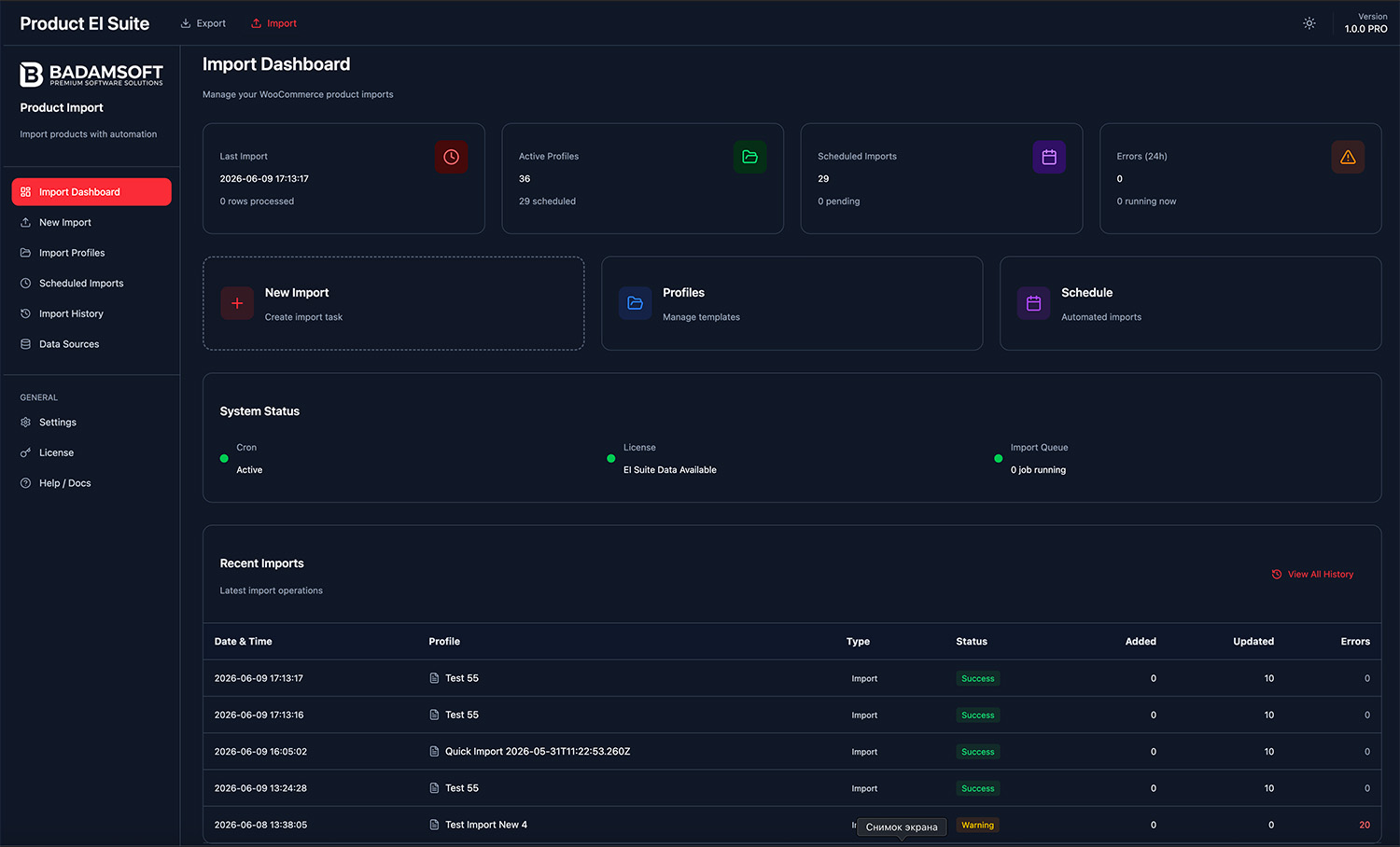
Recent Imports Table
Shows the latest import runs with Date, Profile, Source type, Status (success / error / running / aborted), products created, products updated, products skipped, and errors.
Quick Action Buttons
New Import — 5-Step Wizard
WooCommerce → Product EI Suite → Import → New Import
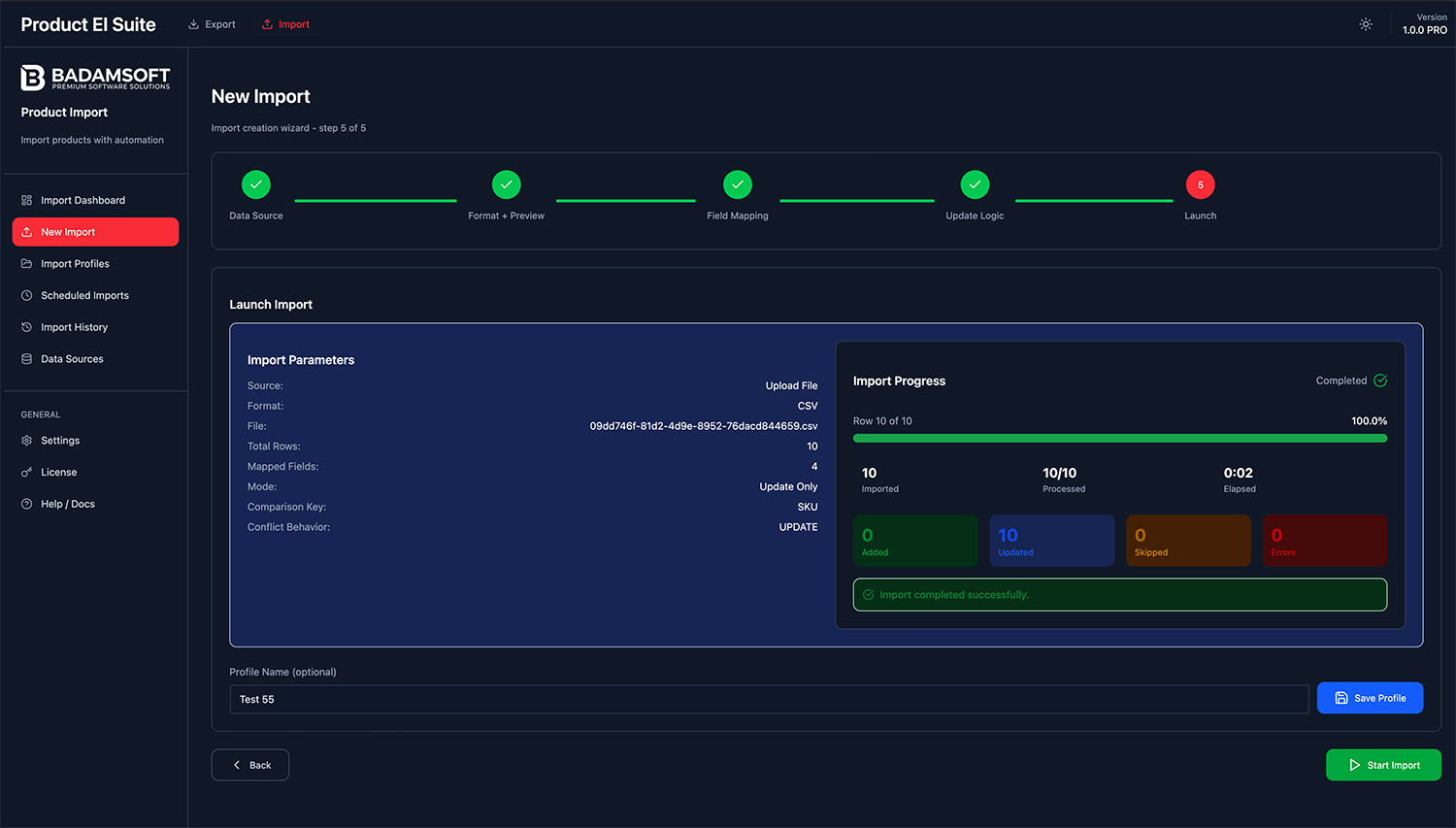
The import wizard guides you through every stage of a product import. Each step must be completed before proceeding to the next, minimising configuration errors and giving you full control over the result.
- File Upload — upload a local CSV, XML, XLSX, XLS, JSON, or YAML file
- URL Feed — enter a public URL pointing to a CSV, XML, or JSON file
- Saved Source — select a pre-configured FTP/SFTP, Google Sheets, or API source
- CSV: auto-detect delimiter (comma, semicolon, tab), encoding, and BOM
- XML: configure XPath to the product element
- XLSX: select worksheet
- Verify column headers and data before proceeding
- Manual override of delimiter and encoding if auto-detection is incorrect
- Visual side-by-side mapper: source column ↔ WooCommerce field
- Auto-mapping suggestions based on column name similarity
- All standard WooCommerce fields: title, SKU, price, stock, description, categories, tags, images, attributes, variations, custom meta
- Transform helpers: trim whitespace, change case, prefix/suffix, date format conversion
- Mapping is saved with the profile for future runs
- Match by: SKU (recommended), Product ID, GUID/EAN/UPC/GTIN, Title
- If matched — Update all mapped fields / Update only empty fields / Skip existing
- If not matched — Create new product / Skip
- Smart Mode: only update fields that have actually changed (field-level diff)
- Option to ignore empty values in the import file (do not overwrite with blank)
- Live progress bar with current batch, products created/updated/skipped/errors
- Abort button to safely stop the import mid-run
- Completion summary with downloadable error log
- Email notification on completion (configurable in Settings)
- Full result saved to Import History
Import Profiles
WooCommerce → Product EI Suite → Import → Profiles
Import Profiles save a complete import configuration — data source, file format, field mapping, update logic, and optional schedule. Use profiles to repeat the same import without re-configuring it each time.
What is Saved in a Profile
- Data source (file, URL, or saved Source reference)
- Format settings (delimiter, encoding, XPath, worksheet)
- Full field mapping (source column → WooCommerce field)
- Update logic settings (match field, create/update/skip behavior)
- Schedule (if configured) — cron expression and timezone
- Notification settings override
Profile Actions
Migration note: If you previously used standalone Product Importer, all your existing import profiles are immediately visible here — EI Suite shares the same database tables.
Import Sources
WooCommerce → Product EI Suite → Import → Sources
Sources are saved, named connections to remote data locations. Instead of entering connection details every time you create an import, configure a Source once and reference it in any number of profiles.
Source Types
Connect to an FTP or SFTP server to read product files. Supports key-based authentication.
Fields: Host, Port, Username, Password/SSH Key, Remote path to file or directory
Fetch data directly from a Google Spreadsheet. Ideal for collaborative product catalogs.
Fields: Google Sheets URL (public or service-account authenticated), worksheet name
Poll a public or authenticated URL for product data. Useful for supplier REST API feeds.
Fields: URL (CSV/XML/JSON), optional HTTP Basic auth, custom headers
Connect to a custom REST API and import the returned JSON/XML product data.
Fields: Endpoint URL, HTTP method, auth headers (Bearer, Basic, API key)
Test Connection
Every Source has a Test Connection button that verifies connectivity and attempts to read the first few rows of data before you save the source. This helps catch configuration errors early without starting a full import.
Scheduled Imports
WooCommerce → Product EI Suite → Import → Schedules
Scheduled Imports automate recurring product data synchronization from supplier feeds, price lists, and external catalogs. Attach a schedule to any Import Profile to run it automatically on a defined interval.
Schedule Options
Secure Cron URL
For reliable execution on shared hosting, EI Suite provides a Secure Cron URL — a protected endpoint with a unique token that your server's crontab should call every 1–5 minutes. This is more reliable than WP-Cron on high-traffic or shared hosting environments.
*/5 * * * * curl -s "https://yoursite.com/?bpeis_cron=1&token=YOUR_TOKEN" > /dev/null
After regenerating the Secure Cron token
Update your server crontab with the new URL immediately. Old URLs stop working after regeneration, so schedules will not run until you update the cron call.
Schedule Logs
Every scheduled run is logged in Import History with its trigger type (SCHEDULED), result, next run time, and any error details. Email notifications can be configured to alert you on success, error, or both.
Settings
WooCommerce → Product EI Suite → Settings
The Settings page is shared between Export and Import. It is organized into tabs: General, Export, Import, Notifications, Advanced, and Compatibility.
Export Settings
| Setting | Description |
|---|---|
| Default export format | CSV by default; change to XLSX or XML for new exports |
| Products per batch | How many products to process per execution cycle (default 200) |
| Export directory | Server path where export files are stored |
| Auto cleanup | Delete export files older than N days automatically |
| Incremental export | Export only products changed since last run |
Import Settings
| Setting | Description |
|---|---|
| Default batch size | Products processed per batch during import (default 50) |
| Memory limit override | Override PHP memory_limit for import processes (MB) |
| Execution timeout | Override max_execution_time per batch (seconds) |
| Auto-create categories | Create product categories if they do not exist |
| Auto-create tags | Create product tags if they do not exist |
| Image download timeout | Timeout in seconds for downloading remote product images |
Notifications
| Setting | Description |
|---|---|
| Export complete | Send email when an export finishes successfully |
| Export error | Send email when an export fails |
| Import complete | Send email when an import finishes |
| Import error | Send email when an import fails |
| Recipient email | Default email address for all notifications |
Advanced
| Setting | Description |
|---|---|
| Query caching | Cache WooCommerce queries during export for performance |
| History retention | How many days to keep export and import log records |
| Database auto-optimize | Run weekly OPTIMIZE TABLE on plugin tables |
| Debug mode | Write verbose logs to a debug file for troubleshooting |
Compatibility Tab
The Compatibility tab shows the status of compatible plugins (standalone Exporter / Importer), available database tables, and WordPress option keys used by EI Suite. Useful for diagnosing migration issues.
Troubleshooting
Common issues and solutions for both Export and Import operations
Export Issues
Export times out or stops mid-way
Exported file is empty or has only headers
Scheduled export is not running
XLSX file opens with garbled characters
Images are not included in the export
Import Issues
Products are not updating — new ones are created instead
Import fails with a timeout or 500 error
CSV is not parsing correctly — columns are merged or shifted
Images are not importing
Categories or tags are not created automatically
Scheduled imports are not running
Variations are created as separate products instead of variations
Still having issues? Our support team is here to help.
Contact Support